Posts mit dem Label VHDX werden angezeigt. Alle Posts anzeigen

Freitag, 4. Januar 2013

Windows Server 2012: Convert VHD to VHDX using Hyper-V Manager


How To Convert VHD to VHDX with Hyper-V 3

Windows Server 2012 and Windows 8 introduce a new virtual hard disk file format, VHDX, which is an upgrade from the current VHD format and provides for superior performance, reliability and several enhancements including:
  • Support for virtual hard disks larger than 2TB and up to 64TB.
  • Better performance of dynamic and difference files through new larger block sizes.
  • Improved alignment of the virtual hard disk on large sector disks.
Many of you already have a virtual infrastructure based on Microsoft Hyper-V and would need to upgrade all your existing VHDs in order to take advantage of all the new features and capabilities. Luckily, The Hyper-V team has taken that into consideration and provided a very simple way to convert existing VHDs into VHDX. Here's how to do it:
  1. Launch Hyper-V manager and from the right side Action pane and select Edit Disk .
  2. The Edit Virtual Hard Disk Wizard starts; click Next to get past the initial screen.
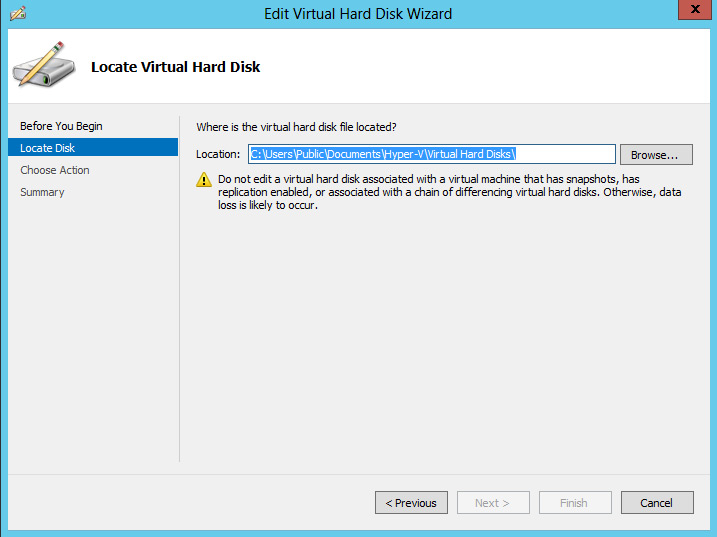
  3. Enter the name and location of the existing VHD file (see Fig. 1) and click Next.
    Enter name and location of VHD file and click Next
    Figure 1. Enter name, location of VHD file and click Next. (Click image to view larger version.)
  4. Select Convert and click Next.
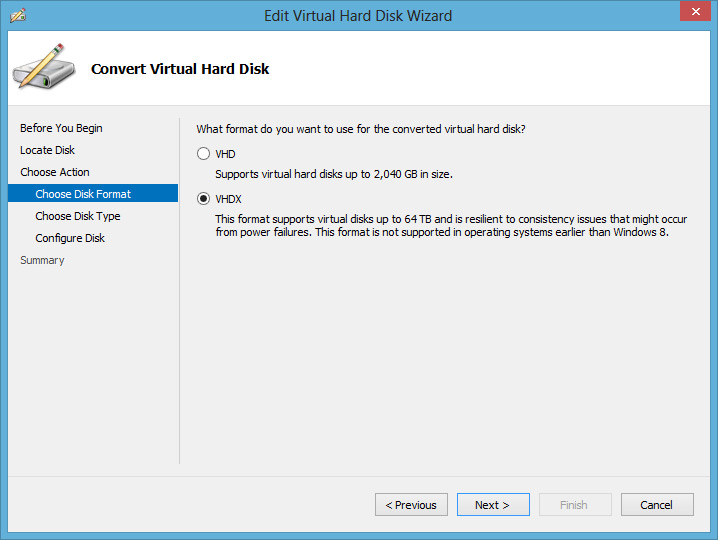
  5. Select the VHDX file format and click Next (see Fig. 2).
  6. Complete the wizard by selecting the settings you need.
Select VHDX file format
Figure 2. Select VHDX file format and click Next. (Click image to view larger version.)
This process makes an exact copy of your existing VHD file, except now it's in the new VHDX format. And should the need arise, you can always use the same process to convert from VHDX back to VHD.

Dienstag, 9. Oktober 2012

How to Convert Hyper-V VHD Disks to VHDX

Windows Server 2012 Hyper-V offers a new virtual disk type called VHDX.  VHDX virtual disks have many benefits, including larger maximum disks up to 64TB, protection against data corruption, and improved alignment of the virtual hard disk format to work well on large sector disks.  See http://technet.microsoft.com/en-us/library/hh831446.aspx for more information about the VHDX disk type.

You can convert existing older format VHD disks to the new VHDX format using the Hyper-V Manager console.  This process will create a new VHDX disk and copy the data from the existing VHD to the new disk.  At the end of the procedure you will have two disks, the original VHD disk and a new VHDX disk with the same contents.  You can safely delete the original VHD disk once you have confirmed that the new VHDX disk is fully functional.

Here are the steps to convert an existing VHD disk to a VHDX disk:
  • Shut down the VM that is accessing the disk, if necessary.  You cannot convert a disk that is in use.
  • Open the Hyper-V VM settings, navigate to the hard drive you wish to convert, and click the Edit button, as shown below:
  • The Edit Virtual Hard Disk Wizard will start.  Select Convert from the Choose Action page and clickNext.
  • Select the VHDX disk format and click Next.
  • Choose whether the new disk should be fixed size or dynamically expanding.  Note that this gives you the opportunity to change disk types from the previous disk type.  Click Next.
  • Select the name and location for the new VHDX disk and click Next.
  • Review the summary and click Finish to create the new disk.  This may take a few minutes depending on the size of the VHD and the speed of your hard drive(s).  A 30GB VHD converted in less than two minutes on my SSD drive.  The size of the new VHDX disk will be slightly larger than the original VHD disk.

  • The last step is to mount the new VHDX disk to the Hyper-V VM.  Note the new VHDX extension.

Once you have started up your VM with the new VHDX disk you can safely delete the old VHD disk.  There are no other configurations necessary.
Did you find this information useful? Post a comment and share it with others!

Rename Onedrive Business root folder

Rename Onedrive Business root folder Here is what I remember: In the Office 365 web admin pages, change the organization name to a shorte...