Posts mit dem Label KMS werden angezeigt. Alle Posts anzeigen

Samstag, 24. Januar 2015

KMS Server Installation on Windows Server 2012 R2

Own KMS server allows to make Microsoft products activation in a corporate network easier and in contrast to a usual activation process doesn’t require granting each computer access to the Internet to Microsoft activation servers. KMS infrastructure is rather simple, reliable and easily scalable (a single KMS server can maintain thousands of clients).
In this article, we describe how to install and activate the KMS server on Windows Server 2012 R2 on the corporate network.

Installation and Configuration the Volume Activation Services Role

KMS requires installation and configuration of a separate role – Volume Activation Services. You can do it in Server Manage console or PowerShell:
1
Install-WindowsFeature -Name VolumeActivation  -IncludeAllSubFeature
Install Volume Activation Services role in Windows Server 2012 R2After the installation is over, start Volume Activation Tools console. An activation service installation wizard will start. Specify that you are going to install Key Management Service (KMS) server.
  Note. If all Windows OSs activated on this KMS server belong to one and the same Active Directory domain, you can use a special KMS extension — Active Directory Based Activation.
install key managment service win 2012 r2
Note. The account must have Enterprise Admin rights.
Next you need to get your corporate KMS key (GVLK – Generic Volume License Key) on Microsoft website (https://www.microsoft.com/Licensing/servicecenter/home.aspx). You can find it in the sectionDownloads and Keys –> Windows Server –> Windows Server 2012 R2.
get gvlk key for kms service at Microsoft Site
Find the key with type KMS (not MAK) and copy it to the clipboard.
Paste the GVLK key in the corresponding field of the wizard (Install your KMS host key).
install kms key
If the system accepts the key, you will immediately be suggested to activate it. The system will define a product by the key you entered and suggest two ways of activation (by phone or online).
activating of kms server
After the key is activated, you have to configure Key Management Service options: activation and renewal intervals, port (by default, KMS listens on port 1688) and Windows Firewall exceptions. To automatically create a DNS record necessary to automatically search a KMS server in the domain (SRV record _vlmcs._tcp), check the option DNS Records – Publish.
publicate kms server in dns
Now the configuration is over. Make sure that a special DNS record pointing to your KMS server was created:
1
nslookup -type=srv _vlmcs._tcp.corp.woshub.com
Then get the information on the KMS server status:
1
slmgr.vbs /dlv
check kms server status
Pay attention to the following fields:
  • Partial Product Key – the last 5 symbols of the key are shown
  • License status – license activation status (it should be Licensed)
  • Total requests received  – the number of activation requests (0 yet)
  Attention. Remember that a KMS server has so called activation threshold. It means that an activated KMS server starts to activate clients only when the number of clients that addressed it in the last 30 days exceeds the certain limit (activation count):
  1. The activation threshold for client OS Vista / Windows 7 / Win 8 is 25 clients
  2. In case of server OSs Windows Server 2008/ 2008 R2 / 2012 / 2012 R2 it is 5 clients
Now the KMS server can activate its clients.

  Some tips.
The same KMS server can activate  MS Office (details in article Activating MS Office 2013 VL
Public KMS keys for Windows 8.1 / Server 2012 R2 here.

Montag, 30. August 2010

KMS: Aktivierung ohne Domänenmitgliedschaft

Der KMS (Key Management Service) bietet reichlich Anlass für hitzige Diskussionen; oft missverstanden und unbeachtet, traut sich so mancher Admin nur unter Vorbehalt an dieses Thema heran. Eine beliebte Frage ist, in wie fern die Aktivierung über den KMS für ein Nicht-Domänenmitglied gesteuert werden kann.
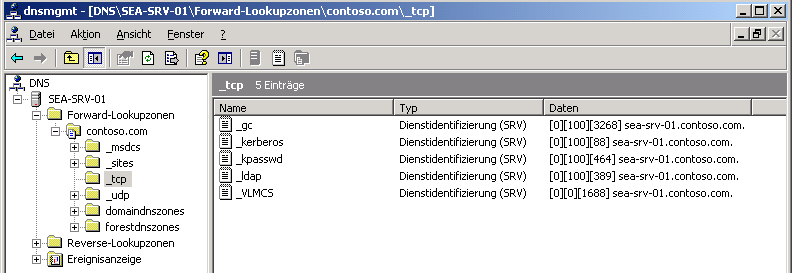
KMS-SRV-Eintrag im DNS
Wie man an der Abbildung oben erkennt, wird ein KMS über einen SRV-Eintrag im DNS gefunden. Damit dieser vom Client nun aucht tatsächlich zum Zwecke der Aktivierung angefragt wird , muss das primäre DNS-Suffix des KMS-Clients so konfiguriert werden, dass es der DNS-Domäne entspricht, in der der “_VLCMS“-Eintrag erstellt wurde. Im Beispiel oben ist das “contoso.com“.
Das besondere ist hierbei, dass ausschließlich der Eintrag über die Systemeigenschaften relevant ist (rechte Maustaste auf den Arbeitsplatz bzw. “Computer”, Eigenschaften). DNS-Suffixe, die in der Netzwerkkonfiguration festgelegt werden, beachtet das System diesbezüglich nicht. Da beim Eintritt in eine Domäne genau dieser Wert automatisch festgelegt wird, ist bei vielen Admins der falsche Eindruck enstanden, dass der Eintritt in die Active Directory-Domäne erforderlich sei. Im Umkehrschluss ließe sich daraus eine Grundsicherung des KMS ableiten. Diese Annahme ist falsch.
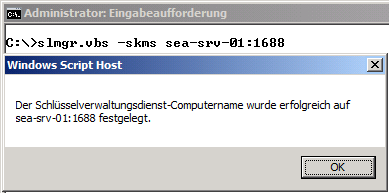
Die zweite Möglichkeit, einen KMS ohne Domänenmitgliedschaft zu nutzen, zeigt die folgende Abbildung:
SLMGR.VBS -SKMS
Dieser Fall wird in den Microsoft Whitepapern empfohlen. Durch den Aufruf von
slmgr.vbs -skms
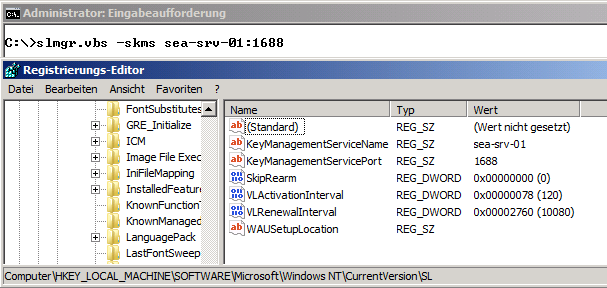
wird ein Registrywert gesetzt, wie in der dritten Abbildung zu sehen ist:
SLMGR.VBS -SKMS erzeugt einen Registryeintrag
Abschließend ist noch die Frage offen, wie man diese Aktivierung denn nun verhindern kann. Die Antwort ist: nicht über den KMS, der kennt keine Zugriffsbeschränkungen. Welche Clients aktiviert werden dürfen lässt sich nur über den beschränkten Zugriff auf das Intranet definieren. VLANs, 802.1X-Authentifizierung, IPSec etc. bieten Möglichkeiten der Absicherung des Datenverkehrs. Andererseits gibt es keinen Anlass für übertriebene Panik: ein KMS aktiviert unabhängig von der tatsächlich lizensierten Hardware prinzipiell unbegrenzt Clients. Man braucht also nicht zu fürchten, dass der KMS die Dienste ab irgendeinem Schwellwert einstellt.

KMS Host Client Count not Increasing Due to Duplicate CMID'S


This issue seems to be more prevalent today due to the various tools used to clone images, create images based on a templates, Physical to Physical (P2V) tools, etc... 
Generally the symptom you will see is that the count on your KMS host will not show the correct number of clients or it will not increase.  There are a number of reasons why this can occur but a common reason is that sysprep was not used when preparing images for deployment. 
Any time you use imaging as your deployment method it is required that you run sysprep to prepare the image for deployment. 
This policy is outlined in the following KB article:  http://support.microsoft.com/default.aspx?scid=kb;EN-US;162001
To determine if you are encountering this you can use the Key Management Service Log do the following:
1. On your KMS host open Event Viewer
2. Right click the Key Management Service Log and choose “Save all events as”
3. Change the Save as type to Text(Tab Delimited)(*.txt)
4. Save the file as KMS.TXT
5. Close out of the Event Viewer completely
6. Open Excel
7. Click File, Open, and browse to KMS.TXT
8. You should see the Text Import Wizard. Choose the following options
    Delimited
    Start Import at Row: 8
    Delimiters: Comma
9. When complete the data may look all messed up. Don’t worry we will correct that
10. Click the upper left of the spreadsheet to select the entire spreadsheet
11. Click Data, Sort, In the Sort By selection choose “Column D”
12. When complete you should see the data sorted in columns.

The Client Machine ID (CMID) is how we uniquely identify a KMS client.  When sysprep is run one of its jobs is to generalize this GUID so when the image is deployed every machine has a unique CMID.  Here is an example output
Column C-Computername

Column D-CMID

TEST-03.contoso.com

01eb9985-230c-49ad-a8c2-c24914da4739

TEST-04.contoso.com

01eb9985-230c-49ad-a8c2-c24914da4739

TEST-02.contoso.com

01eb9985-230c-49ad-a8c2-c24914da4739

TEST-01.contoso.com
01eb9985-230c-49ad-a8c2-c24914da4739

From this output you can see that multiple computernames have the same CMID. Each computer should have a unique CMID. This means that sysprep /generalize was not used to prepare these computers for deployment. So to KMS those 4 machines appear as one. That what be why the count would not be increasing or not reflect the true number of machines deployed.
While it is possible to run slmgr.vbs /rearm to reset the machines CMID that does not leave the machine in a supported state. Images deployed without using Sysprep to prepare the image are not supported by Microsoft. Sysprep executes ~30 sysprep providers. These providers are written to correct issues with various components when you duplicate the installation. By not running sysprep it is unknown what types of issues you could encounter and many components will be in a broken state. The supported solution is to rebuild the image using the Sysprep /generalize switch and redeploy the systems.

Mittwoch, 9. Juni 2010

KMS für Server 2008 R2 und Windows 7

Windows 7 und Windows Server 2008 R2 Aktivierung im Unternehmensnetzwerk

Top 3 der häufigsten Issues bei der Implementierung von KMS im Unternehmensnetzwerk


1. 0xc004C008

Q: KMS Client Keys? Was sind das? Wir haben einen KMS Host Key bekommen und haben diesen auf alle Maschinen installiert.

Wir bekommen jetzt bei der Aktivierung weiterer Maschinen die Fehlermeldung 0xc004C008

A: Als aller erste muss man bei der Verwendung von KMS zwischen KMS Host Keys und KMS Client Keys unterscheiden.

Es gibt die KMS Host Keys welche man über die Volume Licensing Webseite bekommt. Man installiert dann den KMS Host Key nur auf einem Server welchen man für die Verwaltung der Aktivierungen verwenden will.

Alle andere Maschinen aus dem Netzwerk brauchen normalerweise keine Veränderung des Keys da alle VL Images schon KMS Client Keys enthalten.

Falls man jedoch auf den anderen Maschinen MAK Keys benutzt wurden, dann braucht man die Liste mit dem KMS Client Keys um diese manuell auf den Maschinen einzuspielen.

Für Windows Vista und Windows Server 2008 findet man die Liste mit KMS Client Keys hier.

Für Windows 7 und Windows Server 2008 R2 findet man die Liste mit KMS Client Keys hier.

Man bekommt dann die Fehlermeldung 0xc004C008 weil der KMS Host Key auf mehr als 6 verschiedene Maschinen installiert wurde und dadurch eine Sperrung des Keys auslöste.

Lösung:

Man muss den KMS Host Key wieder freischalten damit er wieder verwendbar ist. Mehr Infos zur Freischaltung des KMS Host Keys findet man im MAK and KMS Volume License Keys and Their Activation Limits – Windows Vista and Windows Server 2008

2. 0xC004F074

Q: Wir haben jetzt Windows 7 und Windows Server 2008 R2 Maschinen im Betrieb aber wenn wir versuchen diese gegen den KMS Host zu aktivieren bekommen wir immer die Fehlermeldung: 0xC004F074

A: Auf dem KMS Host befindet sich sehr wahrscheinlich noch ein Windows Server 2008 KMS Host Key welcher keine Windows 7 und Windows Server 2008 R2 Maschinen aktivieren kann.

Wenn Sie noch keinen Windows Server 2008 R2 KMS Host Key haben dann müssen Sie einen über Ihren Volume License Vertrag anfordern damit Sie Ihre Windows 7 und Windows Server 2008 R2 Maschinen aktivieren können.

Lösung:

Schritt 1:

-Falls der KMS Host eine Windows Server 2003 SP2 Maschine ist muss man den Update aus dem KB Artikel KB968915 installieren und die Maschine neu starten.

-Falls der KMS Host eine Windows Server 2008 SP2 Maschine ist muss man den Update aus dem KB Artikel KB968912 installieren und die Maschine neu starten.

-Falls der KMS Host eine Windows Server 2008 R2 Maschine ist muss man keinen weiteren Update mehr installieren.

Schritt 2:

Sie müssen jetzt den neuen KMS Host Key einspielen. Die Befehle lauten folgendermaßen:

1. slmgr -upk (deinstalliert den alten Key)

2. slmgr -ipk <>

3. slmgr -ato (aktiviert den Key)

Danach sollten sich die Windows 7 und Windows Server 2008 R2 KMS Clients erfolgreich am KMS Host aktivieren können.

Falls der gleiche Fehler immer noch auftritt dann stoppen und starten Sie den Software Licensing Dienst:

1. Net Stop slsvc

2. Net Start slsvc

3. 0xC004F050

Q: Wir haben auf unseren KMS Host den KMS 1.2 Update installiert damit wir unseren neuen Windows Server 2008 R2 KMS Host Key installieren können aber beim Befehl “slmgr –ipk ” bekommen wir immer die Fehlermeldung 0xC004F050 und der neue Key wird nicht installiert.

A:

Überprüfen Sie erst ob nach der installation des KMS Updates der Server neu gestartet wurde.

Falls der Fehler immer noch besteht dann müssen Sie den Software Licensing Dienst neu starten und danach den KMS Host Key installieren. Die Befehle dafür lauten folgendermaßen:

1. Net Stop slsvc

2. Net Start slsvc

3. slmgr -ipk

Office 2010 KMS Aktivierung

Wie die meisten von uns schon wissen, wird Microsoft Office 2010 RTM in Kürze erhältlich sein. Office 2010 differenziert sich aber von den vorherigen Office Suites nicht nur durch neue Features sondern auch durch seinem neuen Lizenzierungsmechanismus welcher dem Volume Activation Mechanismus von Windows ähnelt.

Man hat also 2 Aktivierungsmethoden:

1. Key Management Service (KMS)

- die Office 2010 Clients aktivieren sich regelmäßig an einem lokalen KMS Host in Ihrem Netzwerk

2. Multiple Activation Key (MAK)

- die Office 2010 Clients aktivieren sich einmalig mit Microsoft

In diesem Artikel werde ich mehr auf die Aktivierunsmethode mittels KMS eingehen da diese von den meisten Kunden verwendet sein wird und am Anfang einen größeren Aufwand durch das aufsetzen eines KMS Hosts bereitet.

Der erste Schritt um Office 2010 per KMS zu aktivieren besteht darin einen KMS Host aufzusetzten.

Die meisten Kunden ziehen es vor den Office KMS Host auf dem selber Maschine mit dem Windows KMS Host zu installieren.

!! Sehr wichtig: Man kann den Office 2010 KMS Host NICHT auf einer Maschine mit Windows Vista oder Windows Server 2008 installieren. Man bekommt sonst folgende Fehlermeldung:

Hier eine Tabelle mit den unterstützten Betriebssystemen für einen Office 2010 KMS Host:

Operating System

Office

Windows

Windows Server 2003

√

√

Windows Vista

√

Windows Server 08

√

Windows 7 VL

√

√

Windows Server 2008 R2

√

√

Um einen Office KMS Host zu installieren müssen Sie auf der ausgewählten Maschine die Datei KeyManagementServiceHost.exe ausführen.

Man erhält danach ein License Agreement welchen man bestätigen muss, die Office Licence Files werden automatisch installiert und man erhält danach ein neues Fenster wo man das Office 2010 KMS Host Key einfügen kann.

Einen Office 2010 KMS Host Key erhält man über den Volume Licensing Service Center.

Nachdem man den Key eingetragen hat und den Wizard fortgesetzt hat wird der Office 2010 KMS Host Key installiert und anschließend automatisch auch aktiviert. Man muss diesen also nicht mehr wie beim Windows Host Key per slmgr Kommando mit den -ipk und -ato Switches installieren oder aktivieren.

Sobald dies erledigt ist können sich schon die Office 2010 Clients an dem neuen Office KMS Host aktivieren.

Man kann mit folgendem Kommando sowohl den status des Windows KMS Hosts als auch des Office KMS Hosts aufrufen:

slmgr.vbs /dlv all

Um nur die Office Infos zu sehen müssen Sie folgenden Befehl eingeben:

slmgr.vbs /dlv bfe7a195-4f8f-4f0b-a622-cf13c7d16864

Wenn Sie KMS schon bei Einführung von Windows Vista und Windows Server 2008 benutzt haben, dann wissen Sie schon dass es ein Minimum Activation Threshold gibt. Dies ist die geringste Anzahl von Clients die erforderlich sind damit das Aktivierunsprozess anfängt und der KMS Host die weiteren Clients aktiviert.

Der Minimum Activation Threshold für Office 2010 Clients ist 5. Wenn Sie also weniger als 5 Office 2010 Clients im Unternehmen haben, dann werden Sie MAK Keys benützten müssen.

At least five computers must request activation from the KMS host before KMS clients can become activated. All KMS clients must connect to the KMS host at least one time every 180 days to reactivate.

http://technet.microsoft.com/en-gb/library/ff603508(office.14).aspx

Der Initial Grace Period für Office 2010 Installationen ist 25 Tage lang.

Wenn der Initial Grace Period ausläuft und der Office 2010 Client noch nicht aktiviert wurde, dann kann man Office 2010 ohne jegliche Einschränkungen weiterhin benutzten. Der einzige Unterschied besteht darin dass man beim Starten einer Office Komponente ein Fenster bekommt durch welcher der Benutzter darauf hingewiesen ist dass Office nicht aktiviert wurde und dass die obere Leiste rot gefärbt ist (siehe Abbildung). Man behält aber die komplette Funktionalität von Office 2010.

Die Aktivierungszeit bleibt für Office weiterhin 180 Tage und die default Zeit zwischen den Aktivierunsversuchen ist 7 Tage.

Der Office KMS Client Key ist schon in der Office 2010 Installation enthalten so dass während der Installaton von Office 2010 der KMS Client Key nicht eingegeben werden muss.

Um den Office Client zu konfigurieren muss man den ospp.vbs Script anstatt des slmgr.vbs Scripts benutzten:

Kommandos für den Office KMS Host werden aber weiterhin mit dem slmgr Kommando ausgeführt nur dass man die Office Activation ID mit eingeben muss, z.B falls man einen neuen Key installieren und aktivieren will:

slmgr.vbs /ipk

slmgr.vbs /ato bfe7a195-4f8f-4f0b-a622-cf13c7d16864

Weitere Infos findet man unter:

Volume activation overview for Office 2010

Plan volume activation of Office 2010

Volume Activation for Office 2010

Microsoft Office 2010 Beta Key Management Services (KMS) Host Setup

Configure and deploy volume activation of Office 2010

Rename Onedrive Business root folder

Rename Onedrive Business root folder Here is what I remember: In the Office 365 web admin pages, change the organization name to a shorte...