Dienstag, 16. November 2010

Microsoft Forefront TMG and ISP Redundancy


One of the great new features of Microsoft Forefront TMG is ISP Redundancy. With the help of this feature it is now possible to load balance the network traffic between two different ISPs (Internet Service Providers). One other configuration mode is the ability to configure Microsoft Forefront TMG for ISP Failover. In this case, Forefront TMG will use one ISP link as the primary connection, and if this link gets broken, TMG will automatically failover to the second configured ISP.

Configuration of ISP Redundancy

Let us start with the configuration of the ISP Redundancy Mode. Start the Forefront TMG Management Console, navigate to the Networking node and select the ISP Redundancy tab and in the Task pane click Configure ISP Redundancy.

Figure 1: ISP Redundancy window
The ISP Redundancy Wizard gets started and will guide you through the configuration process.

Figure 2: ISP Redundancy Configuration Wizard
First you have to choose between two modes for the ISP Redundancy behavior.
  • ISP Load Balancing
  • ISP Failover
ISP Load Balancing is used to balance the network traffic between the two configured ISP links.
ISP Failover is used to provide an alternative method for a connection to the Internet if the primary ISP link is down due to problems or maintenance reasons. ISP Failover is s great feature for small and medium sized businesses with a simplier network infrastructure which wants to provide failover capabilities for two ISP links. The primary ISP link is often the fastest and cheaper connection and when this connection becomes unavailable TMG will failover to the backup ISP.

Figure 3: Select ISP Redundancy Behavior

ISP Load Balancing


In our first example we chose Load Balancing between two ISP links. You must specify the Network Adapter used for the ISP. First select a name for the ISP and the network adapter which is used to connect to that ISP.

Figure 4: Select Network Adapters for ISP Redundancy
After selecting the first ISP link, the following configuration dialog allows us to configure ISP connection properties like the Gateway IP address and the DNS Server used by this connection.

Figure 5: Connection Properties of ISP
The TMG wizard automatically creates TMG computer objects which can be used as a list of Servers which should route through this ISP.

Figure 6: ISP DNS Server properties
After the configuration of the first ISP has finished you have to configure the second ISP in the same manner as the first ISP. After both ISP connections are configured, you have the choice to balance the load between the two configured ISP. If your ISP bandwidth is the same for both links, what is normally done is to configure an even load between both ISPs. If one ISP has a lower bandwidth than the other ISP, move the slider to set the percentage of traffic this ISP link should handle.

Figure 7: ISP Load Balancing Factor
Click Finish to end the ISP configuration wizard and after that click Apply to save the configuration changes.

Monitor ISP Redundancy

Microsoft Forefront TMG has some capabilities to monitor the ISP Redundancy feature. If you want to see the load and the status of each configured ISP, you can use the Dashboard of the Microsoft Forefront TMG Management Console. The Dashboard function allows you to see the uptime of each ISP and the actually transmitted Bytes per second through each ISP link as you can see in the following screenshot.

Figure 8: Monitoring ISP Redundancy

ISP Failover

After successfully configuring the ISP Load Balancing feature, I will now show you how to configure the ISP failover feature of Forefront TMG. To change the TMG behavior from Load Balancing to Failover, click the ISP Failover link in the task pane of the ISP Redundancy feature tab.

Figure 9: Display ISP Redundancy Mode

ISP Connection Test

The ISP Redundancy configuration has also the option of simulating a broken link or forcing Forefront TMG to mark another ISP connection as active. This can be useful for simulating a broken link or to test the functionality.

Figure 10: ISP Failover Connection Role
It is possible to choose between three Test options:
  • Automatic
  • Always On
  • Always Off

Figure 11: ISP Load Balancing Ratio

ISP Failover Alerting

Microsoft Forefront TMG has some builtin capabilities for alerting the TMG Administrator if there are any problems with the ISP Redundancy feature. TMG comes with five new alert options which are:
  • ISP link is available – Monitors when the ISP link is (again) available
  • ISP Link address missing – No IP address is configured on a network adapter of the TMG Server which can be associated with the ISP Link
  • ISP Link is active – This alert is triggered when an ISP link is active and network traffic passes through this adapter
  • ISP Link is unavailable – Alerts when the ISP link is unavailable or not connected
  • Both ISP Links are unavailable – Both ISP links are unavailable and unusable
If one condition reachs this status the Forefront TMG Administrator has many options to get informtion by sending an e-mail or a network message. It is also possible to execute custom commands or to start/stop/restart some services.

Figure 12: ISP Load Balancing / Failover alerting

Conclusion

In this article, I tried to show you how to configure Microsoft Forefront TMG for ISP Load Balancing to failover between different ISPs. This new feature is excellent for small and medium business who want to share multiple ISP connections or want to have a way of failover between a primary and most powerful ISP link and a lower bandwidth link for backup purposes.

Montag, 15. November 2010

Import Exchange Global Address List (GAL) images into Active Directory (Part 2)

Over the years, displaying recipient photographs in the Global Address List (GAL) has been a frequently-requested feature, high on the wish lists of many Exchange folks. Particularly in large organizations or geographically dispersed teams, it's great to be able to put a face to a name for people you've never met or don't frequently have face time with. Employees are commonly photographed when issuing badges/IDs, and many organizations publish the photos on intranets.
There have been questions about workarounds or third-party add-ins for Outlook, and you can also find some sample code on MSDN and elsewhere. A few years ago, an IT person wrote ASP code to make employee photos show up on the intranet based on the Employee ID attribute in Active Directory (AD) - which was imported from the company's LDAP directory. A fun project to satisfy the coder alter-ego of the IT person.
Luckily, you won't need to turn to your alter-ego to do this. Exchange 2010 and Outlook 2010 make this task a snap, with help from AD. AD includes the Picture attribute (we'll refer to it using its ldapDisplayName: thumbnailPhoto) to store thumbnail photos, and you can easily import photos— not the high-res ones from your 20 megapixel digital camera, but small, less-than-10K-ish ones, using Exchange 2010's Import-RecipientDataProperty cmdlet.
The first question most IT folks would want to ask is— What's importing all those photos going to do to the size of my Active Directory database? And how much Active Directory replication traffic will this generate? The thumbnailPhoto attribute can accomodate photos of up to 100K in size, but the Import-RecipientDataProperty cmdlet won't allow you to import a photo that's larger than 10K. (Note, the attribute limit was stated as 10K earlier. This has been updated to state the correct value. -Bharat)
The original picture used in this example was 9K, and you can compress it further to a much smaller size - let's say approximately 2K-2.5K, without any noticeable degradation when displayed at the smaller sizes. If you store user certificates in Active Directory, the 10K or smaller size thumbnail pictures are comparable in size. Storing thumbnails for 10,000 users would take close to 100 Mb, and it's data that doesn't change frequently.
Note: The recommended thumbnail photo size in pixels is 96x96 pixels.
With that out of the way, let's go through the process of adding pictures.

A minor schema change

First stop, the AD Schema. A minor schema modification is required to flip the thumbnailPhoto attribute to make it replicate to the Global Catalog.
  1. If you haven't registered the Schema MMC snap-in on the server you want to make this change on, go ahead and do so using the following command:
    Regsvr32 schmmgmt.dll
  2. Fire up a MMC console (Start -> Run -> MMC) and add the Schema snap-in
  3. In the Active Directory Schema snap-in, expand the Attributes node, and then locate the thumbnailPhoto attribute. (The Schema snap-in lists attributes by its ldapDisplayName).
  4. In the Properties page, select Replicate this attribute to the Global Catalog, and click OK.

    Figure 1: Modifying the thumbnailPhoto attribute to replicate it to Global Catalog

Loading pictures into Active Directory

Now you can start uploading pictures to Active Directory using the Import-RecipientDataProperty cmdlet, as shown in this example:
Import-RecipientDataProperty -Identity "Bharat Suneja" -Picture -FileData ([Byte[]]$(Get-Content -Path "C:\pictures\BharatSuneja.jpg" -Encoding Byte -ReadCount 0))
To perform a bulk operation you can use Get-Mailbox cmdlet with your choice of filter (or Get-DistributionGroupMember if you want to do this for members of a distribution group), and pipe the mailboxes to a foreach loop. You can also retrieve the user name and path to the thumbnail picture from a CSV/TXT file.

Thumbnails in Outlook 2010

Now, let's fire up Outlook 2010 and take a look what that looks like.
In the Address Book/GAL properties for the recipient

Figure 2: Thumbnail displayed in a recipient's property pages in the GAL

When you receive a message from a user who has the thumbnail populated, it shows up in the message preview.

Figure 3: Thumbnail displayed in a message
While composing a message, the thumbnail also shows up when you hover the mouse on the recipient's name.

Figure 4: Recipient's thumbnail displayed on mouse over when composing a message
There are other locations in Outlook where photos are displayed. For example, in the Account Settings section in the Backstage Help view.
Update from the Outlook team
Our friends from the Outlook team have requested us to point out that the new Outlook Social Connector also displays GAL Photos, as well as photos from Contacts folders and from social networks, as shown in this screenshot.

Figure 5: Thumbnail photos displayed in the People Pane in the Outlook Social ConnectorMore details and video in Announcing the Outlook Social Connector on the Outlook team blog.

GAL Photos and the Offline Address Book

After you've loaded photos in Active Directory, you'll need to update the Offline Address Book (OAB) for Outlook cached mode clients. This example updates the Default Offline Address Book:
Update-OfflineAddressBook "Default Offline Address Book"
In Exchange 2010, the attributes in an OAB can be customized. This is done using the ConfiguredAttributes property of the OAB (see Set-OfflineAddressBook cmdlet). ConfiguredAttributes is populated with the default set of attributes, and you can modify it to add/remove attributes as required.
By default, thumbnailPhoto is included in the OAB as an Indicator attribute. This means the value of the attribute isn't copied to the OAB— instead, it simply indicates the client should get the value from AD. If an Outlook client (including Outlook Anywhere clients connected to Exchange using HTTPS) can access AD, the thumbnail will be downloaded and displayed. When offline, no thumbnail downloads. Another example of an Indicator attribute is the UmSpokenName.
You can list all attributes included in the default OAB using the following command:
(Get-OfflineAddressBook "Default Offline Address Book").ConfiguredAttributes
For true offline use, you could modify the ConfiguredAttributes of an OAB to make thumbnailPhoto a Value attribute. After this is done and the OAB updated, the photos are added to the OAB (yes, all 20,000 photos you just uploaded...). Depending on the number of users and sizes of thumbnail photos uploaded, this would add significant bulk to the OAB. Test this scenario thoroughly in a lab environment— chances are you may not want to provide the GAL photo bliss to offline clients in this manner.
To prevent Outlook cached mode clients from displaying thumbnail photos (remember, the photo is not in the OAB— just a pointer to go fetch it from AD), you can remove the thumbnailPhoto attribute from the ConfiguredAttributes property of an OAB using the following command:
$attributes = (Get-OfflineAddressBook "Default Offline Address Book").ConfiguredAttributes
$attributes.Remove("thumbnailphoto,Indicator")
Set-OfflineAddressBook "Default Offline Address Book" -ConfiguredAttributes $attributes

Import Exchange Global Address List (GAL) images into Active Directory (Part 1)

If you are using Outlook 2010 then you have probably noticed the ability for Outlook to display an image/photo for each user or contact in the Global Address List (GAL) – if you don’t know what this feature is, see here.
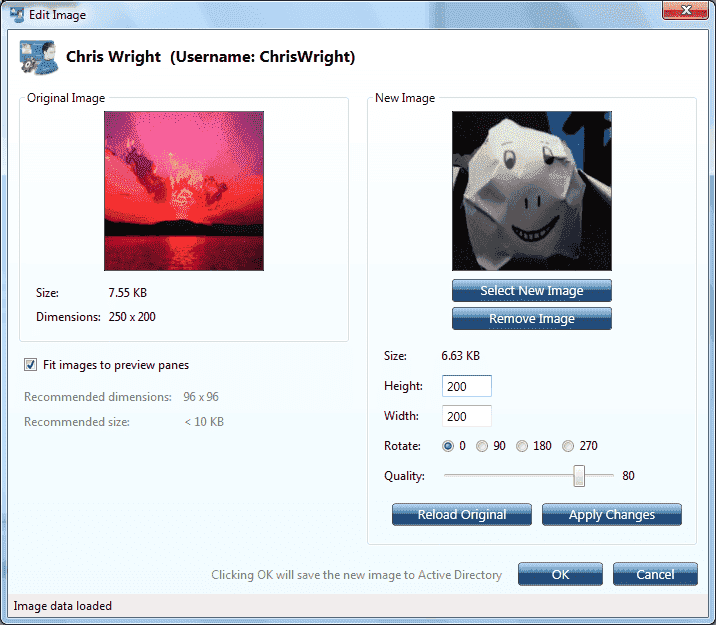
Import Exchange Global Address List images into Active Directory - AD PHOTO EDIT - Standard Results Import Exchange Global Address List images into Active Directory - AD PHOTO EDIT - edit image
As you will note from that article, the only method that Microsoft provides for importing images into the Active Directory attribute that Outlook 2010 pulls these images from is a PowerShell cmdlet that comes with Exchange 2010 (you don’t need Exchange 2010 for this to work). This cmdlet also limits you to selecting images that are less than 10 KB even though the thumbnailPhoto attribute in Active Directory is only limited to 100 KB.
So I decided to make a user friendly GUI for adding/removing/editing these images to Active Directory.

Donnerstag, 11. November 2010

SNMP unter Windows

Gerade in umfangreicheren Umgebungen wird ein Netzwerkmanagement auf Basis von SNMP erfolgen. SNMP dient nicht nur dazu, Router, Hubs und Switche zu überwachen, sondern kann auch dazu genutzt werden, Server und Dienste zu kontrollieren. Und genau das ist mit Windows möglich und damit auch mit Exchange.

SNMP einrichten

Windows NT bzw. Windows 200x kann schon von den ersten Tagen per SNMP abgefragt und auch beschrieben werden. Allerdings ist der Dienst nicht in der Standardinstallation enthalten. Sie müssen SNMP explizit über das Windows Setup nachinstallieren.
Der Dienst WMI SNMP-Anbieter erlaubt es, dass Programme über die WMI-Schnittstelle Anfragen an SNMP-Geräte weiter leiten können. Der umgekehrte Weg, dass per SNMP auch WMI-Befehle ausgeführt werden können, ist nicht möglich.

SNMP absichern

Durch die Installation des Dienstes ist prinzipiell der Zugriff auf SNMP des Servers möglich. Aber wie steht es mit der Sicherheit ?. Hier hat Microsoft mit jeder Version von Windows nachgebessert
BetriebssystemLesenSchreiben
WindowsNT4Public von jeder IP-Adresseprivate von jeder IP-Adresse
Windows 2000Public von jeder IP-Adressekein
Windows 2003Public nur localhostkein
Bei Windows NT4 war dann der Zugriff von jedem anderen System mit der Community "Public" möglich. Das ist bei Windows 2000 noch eingeschränkt wurden und bei Windows 2003 noch weiter abgesichert. Schließlich kann per SNMP auch geschrieben werden, d.h. Sie können per SNMP z.B. eine Netzwerkkarte "Administrativ Down" setzen. Daher müssen Sie SNMP über die Eigenschaften des Dienstes konfigurieren:
Sie sollten die Liste der SNMP-Hosts pflegen, die den Server abfragen dürfen. Per Default darf niemand den SNMP-Dienst bei Windows 2003 abfragen und es ist auch keine Community gepflegt.
Die Community ist quasi der Benutzernamen, der bei einer Anfrage zu übermitteln ist und der SNMP-Dienst daran erkennt, was der Anfragende darf. Es gibt aber kein Kennwort !!. Sie können nun eine eigene SNMP-Community eingehen, die kaum zu erraten ist, aber leider geht eben diese Community in Klartext über das Netzwerk. Daher ist SNMP in der Basisversion nicht als sicher zu betrachten.  Nutzen Sie daher wirklich die Möglichkeit, IP-Adressen der anfragenden Systeme zu beschränken.

SNMP mit Regedit und GPOs steuern

Nun werden Sie natürlich sich fragen, Wie man auf vielen Servern die Einstellungen synchronisiert. Hierzu kennt Windows 2003 mittlerweile auch die Funktion, diese Einstellungen per Gruppenrichtlinien einzutragen. Aber auch für Windows NT4 und Windows 2000 können Sie ähnliche Lösungen schaffen. Die Einstellungen von SNMP liegen in der Registrierung:
Entsprechend können Sie einen bestehenden Server konfigurieren und die Einstellungen mit REGEDIT exportieren und auf allen anderen Systemen importieren.
Für Windows 2003 können diese Einstellungen auch über Gruppenrichtlinien durchgeführt werden. Dazu sind aber zuerst die SNMP Erweiterungen zu aktivieren unter
User Configuration\Administrative Templates\Windows Components\Microsoft Management Console\Restricted/Permitted snap-ins\Extension snap-ins
Und Sie müssen die aktuelle system.adm eventuell erst noch importieren, damit Sie die Einstellung für SNMP angezeigt bekommen.
Administrative Templates\Network\SNMP

Trügerische Sicherheit

Die Einstellung von eigenen Community Strings und die Beschränkung der Zugriffe von bestimmten IP-Adressen ist nur ein kleiner Schutz, der aber leicht zum umgehen ist.
So sind die beiden Schutzmechanismen "Community" und "Hostliste" einfach zu umgehen:
  • Community String
    Diese werden meist per Klartext übertragen und sind damit von anderen Personen abhörbar.
  • Allowed Hosts
    Absendende IP-Adressen können einfach gefälscht werden
    Der Rückweg zum Angreifer kann über ARP-Spoofing ermöglicht werden
Wenn Sie daher zuverlässig verhindern wollen, dass unerlaubte Systeme auf SNMP zugreifen, dann müssen Sie diese auf ein eigenes Subnetz, VLAN oder z.B. per IPSEC absichern. Wenn Sie per SNMP aber nur einen lesenden Zugriff zulassen, dann müssen Sie selbst überlegen, wie schwerwiegend es ist, wenn ein fremdes System bestimmte Betriebsdaten per SNMP abfragt.

Configuring Remote Management of Hyper-V Server - in a workgroup


I have received a number of questions about how to go about setting up remote management of our free Hyper-V server (not the one that is part of Windows).  So I thought I would sit down and write up a set of blog posts to talk about how to do this.  Today I am going to talk about how to remotely manage a Hyper-V server from a Windows 7 desktop when in a workgroup environment.
I am going to assume that you have already installed Hyper-V server and have configured the server name, workgroup name and networking appropriately (in my case – the server name is “Server1” and the workgroup name is “WORKGROUP” – not very original, I know).  Also, I am not going to be talking about the other aspects of setting up a Hyper-V server (e.g. configuring automatic updates, enabling remote desktop, etc…).  I am just focusing on how to get remote management working.
Server Configuration
The first thing you will need to do is to go to the Hyper-V server and run SConfig.cmd (this is configured to run automatically when you log into a Hyper-V server – if you have changed this you can start it manually.  It is in the Windows\System32 folder on the server).  Once you are in SConfig.cmd you will need to:

  1. Select option 4 on the SConfig menu (labeled Configure Remote Management)
  2. Then select options 1 (Allow MMC Remote Management) and 2 (Enable Windows PowerShell)

    image
  3. After you enabled Windows PowerShell you will be asked to reboot.
  4. After the reboot – go back into SConfig and select option 4 again
  5. Select option 3 (Allow Server Manager Remote Management)
    1. Note that Server Manager Remote Management requires that you have PowerShell enabled first – so you cannot shuffle this ordering around to try and avoid the reboot.
  6. Select option 5 to Return to main menu
Next, I am going to assume that you are not logged into your Windows 7 computer with the “Administrator” account (which is disabled by default) so you will need to create a second account on the Hyper-V Server.  To do this you will need to go into SConfig and:
  1. Select option 3 (Add Local Administrator)
  2. When prompted for an account name – enter the user name that you are using on the Windows 7 desktop (in my case – “Benjamin”).
  3. You will then be asked for a password – and again you should use the same password as you are using on the Windows 7 desktop (no – I am not going to tell you my password)

    image
Next – to enable remote (but read-only) access with device manager – run this command from the command prompt as well: reg add HKLM\Software\Policies\Microsoft\Windows\DeviceInstall\Settings /v AllowRemoteRPC /t reg_dword /d 1 (once again that is a single command).
image
Finally you will need to restart the server one last time (you can use option 13 on the Sconfig menu).
Desktop Configuration
Now it is time to go and configure the desktop computer.
The first thing to do is to download and install the Remote Server Administration Toolkit.  You can download it from here: http://www.microsoft.com/downloads/en/details.aspx?FamilyID=7d2f6ad7-656b-4313-a005-4e344e43997d and install it by just running it and following the prompts.
After you have done this you will need to enable the correct remote management tools.  To do this:
  1. Open the Start menu
  2. Open Control Panel
  3. Select Programs and Features (or just Programs depending on the Control Panel view that you are using)
  4. Select Turn Windows features on or off
  5. Find Remote Server Administration Tools and Check Hyper-V Tools (under Role Administration Tools) and Server Manager under the top level list
  6. Click OK
image
In most workgroup configurations you will not have reliable name resolution for remote computers (i.e. you need to use the IP address).  However – many of the server management tools require that name resolution be working reliably.  If you are using a fixed IP address on the Hyper-V server – you can make this work by editing the “hosts” on the desktop computer (note – you can skip this step if you can ping the Hyper-V server using its name and have it resolve to an IP address correctly):
  1. Open the Start menu
  2. Click on All Programs and then on Accessories
  3. Right click on Notepad and select Run as administrator
  4. Once Notepad has opened, use the File menu to Open… a file
  5. Navigate to the “Windows\System32\Drivers\etc” folder on the system drive
  6. Change the file name option from Text Documents (*.txt) to All Files
  7. Open the “hosts” file
  8. At the end of this file – add an entry for your server.  The format is basically the IP address of the server followed by the name of the server.
  9. Save the file and exit Notepad.
(Here is the hosts file from my desktop – after I have modified it for my server)
image
You will need to enable the use of WinRM to connect to your Hyper-V server.  To do this you will need to:
  1. Open the Start menu
  2. Click on All Programs and then on Accessories
  3. Right click on Command Prompt and select Run as administrator
  4. Type in winrm quickconfig and hit enter.  You will then need to say ‘y’ (yes) to a couple of prompts
  5. Type in winrm set winrm/config/client @{TrustedHosts="RemoteComputerName"} and hit enter
    1. Substitute “RemoteComputerName” with the name or IP address of your Hyper-V server.  In my test environment my desktop computer could not resolve the name of my server – so I just opted to use the IP address.  I could also have edited the hosts file on my desktop and used the server name.
  6. While we are here – we should also open the firewall on the client side to allow us to remotely manage the servers storage by running this command: netsh advfirewall firewall set rule group="Remote Volume Management" new enable=yes
image
Now you will need to use HVRemote to enable remote management of Hyper-V on the desktop computer.
  1. Download HVRemote from http://code.msdn.microsoft.com/HVRemote/Release/ProjectReleases.aspx
  2. Open the Start menu
  3. Click on All Programs and then on Accessories
  4. Right click on Command Prompt and select Run as administrator
  5. Change to the directory where you saved HVRemote
  6. Type in cscript hvremote.wsf /mode:client /anondcom:grant /firewallhypervclient:enable /mmc:enable and hit enter.
image
You can now open Server Manager on the desktop computer.  To do this:
  1. Open the Start menu
  2. Click on All Programs and then on Administrative Tools
  3. Click on Server Manager
  4. You will be automatically prompted for the name of the server that you want to connect to.
After you enter your server name – you should have full access to manage your Hyper-V server:
image
The only caveat here is that Performance monitor still connects to the local computer.  You can, however, add individual counters from the remote server one at a time.  One thing that tripped me up on this issue is that after entering the server name you need to select the Select counters from computer: drop down and hit enter:
image

Mittwoch, 10. November 2010

Hyper-V Networking Problems

I found a series of keys in the registry that I could delete to get rid of the adapters.  I went back in the registry to see if the root folder was still there but it's gone so Unfortunately I'm not sure what it was called but it's located under:
HKEY_LOCAL_MACHINE\SYSTEM\ControlSet001\Enum\Root


If you search for the exact name of the adapter in the registry you will see the keys...


The fun part is actually deleting them... there are lots of embedded keys and most of them have no owner or at least administrator doesn't have the ability to see it.  You have to take ownership of the key then add administrator to the permissions... then once u do that u will be able to see the keys under it and you can keep doing the same thing... there are about 50+ keys you need to delete (individually because of permissions!) in order to delete the entire set for the adapter.


I wish recursive claim ownership was possible to grab every key under it but unfortunately that does not work.. you need to claim ownership and add permission to a key in order to see what's under it.


Hyper-V causes way too many problems on my system... and after deleting 5 adapters from the registry in the way I described above I'm more than done with it.  I might try again on next release but I'm finding the vmware server 2.0 beta works VERY well on server 2008 so I'm using that for now.


Lösung: I used subinacl (a free microsoft tool) to change the permissions on the keys.


For each 0000, 0001, etc. in HKEY_LOCAL_MACHINE\SYSTEM\ControlSet001\Enum\Root\VMS_MP\ run the following line (in a bat file or like):


"C:\Program Files (x86)\Windows Resource Kits\Tools\subinacl" /subkeyreg HKEY_LOCAL_MACHINE\SYSTEM\ControlSet001\Enum\Root\VMS_MP\0000 /grant=administrators=f


After this, the keys (0000, 0001, etc) can be deleted, and the intefaces will go away:)


Link: Microsoft SubInACL
http://www.microsoft.com/downloads/en/confirmation.aspx?FamilyID=e8ba3e56-d8fe-4a91-93cf-ed6985e3927b&displaylang=en

Tastenkombinationen Shortcuts für den Systemstart von MAC OS X Snow Lepard

Tastenkombinationen Shortcuts für den Systemstart von MAC OS X Snow Lepard:
  • Alt +  + O + F = Startet die Open Firmware Konsole beim Systemstart.
  • C = Der Rechner versucht zuerst vom internen CD-ROM Laufwerk zu booten.
  • D = Der Rechner versucht zuerst von der internen Festplatte zu booten.
  • Alt +  + P + R =Löscht das Paramter RAM.
  • Shift Alt  Backspace = Umgeht das aktuelle Startvolumen.
  • Alt = Öffnet bei neuern Rechner den Dialog zur Auswahl eines Startvolumens
  • Alt = Startvolumen bei Systemstart auswählen
  •  + V = Startet den Verbose Modus
  • linke Maustaste = CD beim Systemstart auswerfen
  • T = Rechner im Targetmodus starten
  • Shift + Alt +  + Delete = Umgeht das aktuelle Startvolumen und sucht nach einem alternativen Startvolumen.
  • N = Automatische Suche nach einem bootfähigen Netzlaufwerk
  • Shift = Systemstart im Safe Boot Modus
  •  + S = Startet den Single User Modus
  • D = Startet von der ersten Festplatten Partition
  • X = Startet OS X vom aktiven Startvolumen 

Donnerstag, 4. November 2010

BackupAssist: Hyper-V Host Level Backup & Guest File Retrieval

This is something that is the ideal.  Consider the typical host level backup with DPM (Data Protection Manager).  It uses VSS (Volume Shadow Copy Service) to bring the VM into a state where everything can be backed up at the VHD level without service interruption or inside VM corruption.  The problem with this is that you are backing up the state of the VM and a restore means you have to restore the entire VM.  Yes, you can restore that 100GB VHD, mount the VHD and get the file(s).  But that’s time consuming and slow.  It’s also manual.
That means you are typically putting backup agents on the host and in the VM.  The host level one is good for DR and the VM level one is good for operational backup/recovery.  The problem is the time to set it up, potentially the licensing costs (with 3rd party solutions), the amount of storage required and the amount of time/traffic required for a backup window.
A company called BackupAssist seems to get this.  I’ve never heard of them before and I cannot vouch for their product or their company.  But they are pointing the way forward.  The have a solution called BackupAssist v5 that will backup at the host level.  You can then restore any file from within the backed up VHD’s.  On the face of it, it appears they are doing this VHD mounting process through a GUI.  It also looks quite cheap.  If I was a SME looking for a backup solution for my Hyper-V servers, I’d definitely have to give their demo a good test.

32-Bit Drucker Treiberprobleme auf einem Windows Server 2008 R2


Wir setzen einen Windows Server 2008 R2 als Druckserver (Printserver) für unsere Netzwerkdrucker ein. Dieses hat sich bisher absolut bewährt, da die Druckerverwaltung vom Windows Server 2008 R2 wesentlich stabiler mit den Druckertreibern zusammenarbeitet und die immer wieder auftretenden Probleme mit fehlerhaften Treiberversionen beeinflussen die restlichen Drucker auf dem Printserver nicht mehr negativ.
Wir standen nun aber vor einem Problem, dass von unserem neuen Farb-/Kopiersystem Canon iR 3050 der 64-Bit PS (Postscript) Treiber einwandfrei installieren ließ, der 32-Bit Treiber, der im gleichen Installationspaket vorhanden war, hingegen nicht. Es kam auf dem Server immer wieder zu der Anfrage, das es bei der Installation zu der Suche nach der Datei “NTPRINT.INF” kommt.

Egal welche NTPRINT.INF Ihr der Druckertreiberinstallation auch vom Windows Server 2008 R2 anbietet, er nimmt sie nicht an und verweigert die Installation.
Anschließend habe ich versucht vom Hersteller eine evtl. noch neuer Treiberversion zu erhalten, leider ohne Erfolg. Also habe ich weiter gesucht und letztendlich die Lösung für das Problem gefunden.
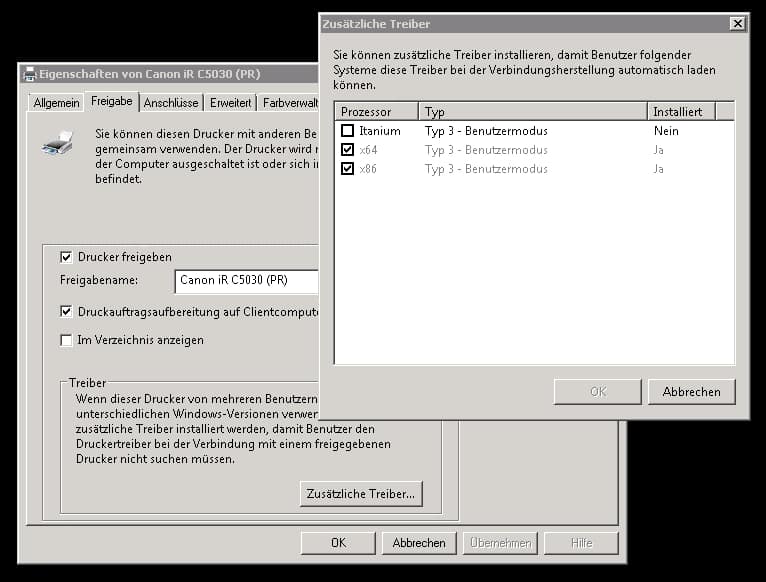
Ich habe den 32-Bit Treiber, der auf dem Server die Probleme bereitet,  auf einem Windows 7 32-Bit Betriebssystem lokal installiert. Anschließend bin ich auf dem Windows Server 2008 R2 erneut in die Druckerverwaltung gegangen, habe die Druckereigenschaften des neuen Druckers aufgerufen, bin auf den Reiter “Freigabe” gewechselt und habe den Button “Zusätzliche Treiber” betätigt.

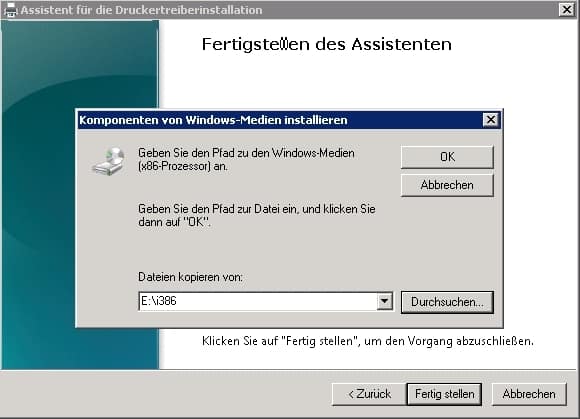
Nun ist der Haken bei “x86″ zu setzen und anschließend wird die normale Treiberinstallation gestartet. Bitte zunächst den passenden Treiber auswählen und die Installation starten, bis es wieder bis zur Meldung (siehe 1. Bild) kommt.
Hier ist nun ein Pfad des Windows Vista oder Windows 7 Clients anzugeben, auf dem Ihr den Druckertreiber lokal installiert habt. Der Pfad lautet wie folgt:

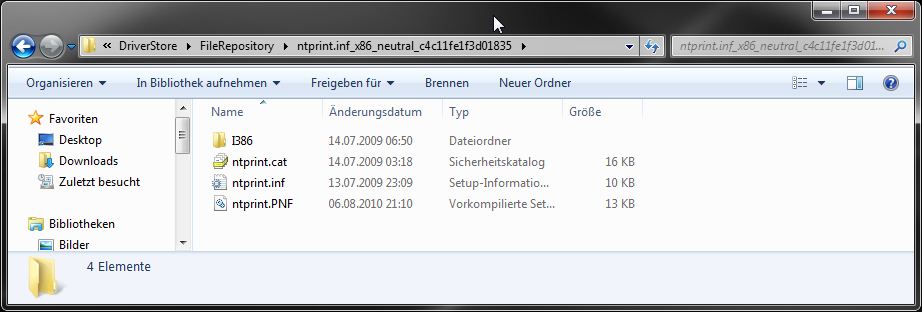
\\PCNAME\C$\Windows\System32\DriverStore\FileRepository\ntprint.inf_x86_neutral_??????????????
Die “??????????????” sind Platzhalter, dort steht bei jedem PC eine andere Nummer, die aber keine weitere Rolle spielt. Dieser Pfad ist nun einzugeben und die Installation fortzusetzen. Das Installationsprogrammnimmt die Dateien dieses Pfades an und bringt die Installation ordnungsgemäß zu Ende.
Anschließend ist der x86-Treiber installiert und funktionsbereit. Somit können sich auf x86-Clients mit dem Printserver verbinden und auf dem neuen Farb-Kopiersystem drucken.
Diese Lösung ist nicht auf Canon Treiber beschränkt, sondern sollte auch mit Treibern anderer Hersteller einwandfrei funktionieren.

Mittwoch, 3. November 2010

Office 2010 guides for IT pro’s


Deploy Multilanguage Packs for Office 2010
Describes and illustrates how to deploy multilanguage packs for Microsoft Office 2010.
Microsoft Office 2010 Performance
White Paper document providing overview of Office 2010 Performance and Hardware investments
Deployment Options for Office 2010
Describes and illustrates the client deployment methods for Microsoft Office 2010.
Volume Activation of Office 2010
Describes and illustrates how to manage Office 2010 Volume Activation methods: Multiple Activation Key (MAK) and Key Management System (KMS).
64-bit Client Installation of Office 2010
Describes and illustrates the 64-bit client installation of Office 2010.
Team Foundation Installation Guide 2010
Team Foundation Installation Guide 2010 includes instruction for installing Team Foundation Server, Team Foundation Server Proxy and Team Foundation Build Services. After you download the installation guide, you cannot view its contents unless you right-click the .chm file, click Properties, and then click Unblock.
Configuring Kerberos Authentication for SharePoint 2010 Products
Describes concepts of identity in SharePoint 2010 Products, Kerberos authentication, and how to use it in various scenarios

Rename Onedrive Business root folder

Rename Onedrive Business root folder Here is what I remember: In the Office 365 web admin pages, change the organization name to a shorte...