| Dienst oder Anwendung | TCP | UDP | Externe Portnummer | Interne Portnummer | An IP-Adresse weiterleiten | Aktivieren? |
|---|---|---|---|---|---|---|
SMTP | TCP | 25 | 25 | 192 . 168 . ________ . ________ | Ja | |
Simple Mail Transfer Protocol (SMTP) ist ein TCP/IP-Protokoll zum Senden von Nachrichten von einem Computer an einen anderen in einem Netzwerk. Dieses Protokoll wird im Internet verwendet, um E-Mail-Nachrichten weiterzuleiten. | ||||||
HTTP | TCP | 80 | 80 | 192 . 168 . ________ . ________ | Ja | |
Hypertext Transfer Protocol (HTTP) ist ein Protokoll für die Übertragung von Anforderungen von einem Browser an einen Webserver sowie für die Übermittlung von Seiten von Webservern zurück an den anfordernden Browser. | ||||||
HTTPS | TCP | 443 | 443 | 192 . 168 . ________ . ________ | Ja | |
Secure Hypertext Transfer Protocol (HTTPS) ist eine HTTP-Version, die Daten mithilfe von SSL (Secure Sockets Layer) verschlüsselt. | ||||||
HTTPS für RWW | TCP | 987 | 987 | 192 . 168 . ________ . ________ | ||
Über diesen HTTPS-Port (Secure Hypertext Transfer Protocol) können Windows SharePoint-Dienste über einen Remote-Webarbeitsplatz angezeigt werden. | ||||||
VPN | TCP | 1723 | 1723 | 192 . 168 . ________ . ________ | ||
Ein virtuelles privates Netzwerk (Virtual Private Network, VPN) ist ein Netzwerk, das einen oder mehrere Computer über das Internet mit einem großen Netzwerk verbindet, z. B. einem Unternehmensnetzwerk. Ein VPN ist verschlüsselt, um sicherzustellen, dass nur autorisierte Personen darauf zugreifen zu können. | ||||||
RDP | TCP | 3389 | 3389 | 192 . 168 . ________ . ________ | ||
Microsoft Remote Desktop Protocol (RDP) ist ein Standardsatz an Kommunikationsregeln, mit dem Sie sich über Ihren Computer mit einem Computer an einem anderen Standort verbinden können. | ||||||
192 . 168 . ________ . ________ | ||||||
192 . 168 . ________ . ________ | ||||||
192 . 168 . ________ . ________ | ||||||
192 . 168 . ________ . ________ | ||||||
192 . 168 . ________ . ________ | ||||||
Freitag, 27. August 2010
Small Business Server 2008 benötigte Ports

Mittwoch, 25. August 2010
Exchange 2007 needs command line to set FQDN of external host name on Send Connector
In Exchange 2007, you have a nice little GUI to set your FQDN on your Send Connector. (Mine is called Outbound, as shown below.)
You can see my FQDN, set under the Hub Transport/Send Connectors of the Exchange Management Console.
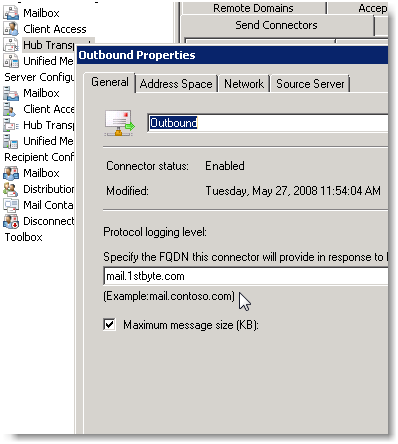
However, if you send mail out to an external address, you’ll notice in the headers that your internal server name is still listed! What!? What’s the point of the GUI?
You have top open Exchange Management Shell, and type in a command to solve this. It’s easy.
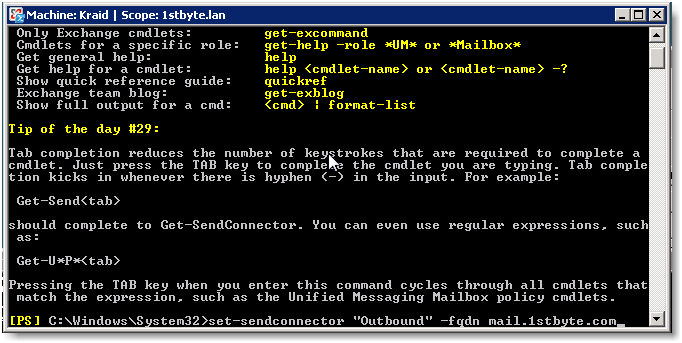
As shown above, you just type in the command:
set-sendconnector “Outbound” –fqdn mail.1stbyte.com
Replace “outbound” with the name of your send connector, and of course, change to your own FQDN, not mine.
It will come back in error, or success. If success, you can check your headers on and external account right away.
Reverse DNS matches SMTP Banner
Dies Einstellung wird unter
Serverkkonfiguration
--Hubtransport
----Empfangsconnectors
----//Allgemein // Protokolliergrad - und den FQDN ändern.
Reverse DNS matches SMTP Banner
Dies Einstellung wird unter
Serverkkonfiguration
--Hubtransport
----Empfangsconnectors
----//Allgemein // Protokolliergrad - und den FQDN ändern.
Dienstag, 24. August 2010
Direct Access mit UAG
Step by Step Anleitung für die Installation von Direct Access mit UAG
Link von Microsoft: http://technet.microsoft.com/en-us/library/ee861169.aspx
Weitere Details folgen...
Link von Microsoft: http://technet.microsoft.com/en-us/library/ee861169.aspx
Weitere Details folgen...
Mittwoch, 18. August 2010
Windows Storage Server 2008 – Default Password
As MSDN or Technet Subscriber you have the possibility to download and Install-DVD for Windows Storage Server 2008. Normally it will be shipped just by OEM’s. So when you want to play around with it like me, for example to use it as an iSCSI-Target for a Cluster-Lab you’ll be surprised that the installation finish without asking for a Administrator password. It just stops at the logon window.
The default Administrator password is “wSS2008!” (without the quotes).
How to find the Reference ID (RefID) of a message or calendar item
When trying to troubleshoot missing messages or message problems you'll need to get the Reference ID (RefID) of that message or calendar item. You can either get the RefID from an Outlook client or the BlackBerry smartphone. Here is how to do both:
From Outlook:
Within the message (or calendar item) in question press: ALT + V-I-E-W
From BlackBerry Storm smartphone:
From Outlook:
- Open the Outlook client on a workstation that has Outlook Spy installed on it.
- Highlight the message of which you would like to see the hidden properties for.
- If Outlook Spy is installed you will have an additional toolbar in Outlook client. One of the buttons on this additional toolbar is called IMessage. Please click this button.
- A separate window will open, displaying the hidden properties of this message.
- The RefID will be a PT_LONG type property. The Property Tag will typically be '0x*** ????????D' (where * can vary in it's characters) and the Value will be a 9-12 digit number.
Within the message (or calendar item) in question press: ALT + V-I-E-W
From BlackBerry Storm smartphone:
- Hold the BlackBerry Storm smartphone in portrait view.
- Display the menu and then select Show Keyboard.
- Hold the number key to lock the number keyboard. The 123 icon appears on the screen, and a small lock appears on the number key.
- To display the refid, in landscape view type $-21, or in portrait view type 77331!!.
Montag, 16. August 2010
Und plötzlich geht DirectAccess nicht mehr
 Ich hatte heute ein Problem mit DirectAccess das mich einige Nerven gekostet hat: zwei DirectAccess Clients die schon funktioniert hatten konnten nicht mehr auf die interne Struktur zugreifen. Ich habe mehrere Stunden nach dem Problem und damit auch nach der Lösung gesucht: Ergebnis die ActiveDirectory Controller hatten ihre IPv6 DNS-Einträge verloren.
Aber hier das Phänomen und die Lösung:
Nachdem ich viele mögliche Fehlerquellen auf dem Client ausgeschlossen hatte blieb ich an der Ausgabe des Befehls:
nltest /dsgetdc: /force
Fehler beim Abrufen des Domänencontrollernames: Status = 1355 0x54b ERROR_NO_SUCH_DOMAIN
hängen. Mit diesem Fehler als Hinweis testete ich die IPv6 Namesauflösung der internen Domain: Ergebnis diese funktionierte auch nicht.
Nach Aufwahl auf den DirectAccess Server entdeckte ich dann in der “DirectAccess Verwaltung” im Punkt “Überwachung” das die DNS Server einen Fehler aufweisen. Der Fehler lautet:
Keiner der internen DNS-Servervon den DirectAccess-Clientcomputern für die Namensauflösung verwendet werden, reagiert. Dadurch wird verhindert, dass mithilfe der DirectAccess-Clients Namen im internen Namespace aufgelöst und Verbindungen muss dem internen Netzwerk hergestellt werden können. Stellen Sie sicher, dass die DNS-Server online sind und auf Namensauflösungsabforderungen reagieren

Ursprung dieses Fehlers ist, dass die Nameserver zwar über IPv4 angesprochen werden können aber nicht über IPv6. Wenn man sich auf den DNS Server die Auflösung der ADS Controller anschaut, dann bemerkt man das nur die IPv4 Adressen registriert sind und nicht auch die IPv6 Adressen wie im Beispiel beim DirectAccess Server vDirectAccess.

Diese kann man beheben indem man sich an den ADS Controller anmeldet, dort eine administrative Kommandozeile startet und dann mit den Befehlen:
net stop iphlpsvcden IP-Hilfsdienst neustartet. Dieser sollte dann die IPv6 Adressen des Rechners wieder in den DNS-Server eintragen. Danach sehen die Einträge im DNS-Server folgendermaßen aus:
net start iphlpsvc

Auch das Tool “DirectAccess Verwaltung” zeigt dann an das alles in Ordnung ist:
 Fazit: wer mal ab und zu in die mitgelieferten Tools schaut der kann sich einige Zeit bei der Problemsuche sparen
Reporting improvements in Forefront TMG SP1
Forefront TMG SP1 includes some significant improvements to the reporting functionality:
- New look-and-feel for all existing reports – cleaner aesthetics that match other Forefront products.
- User Activity Report: provides detailed information about the activity of specific users.
- Reports added for new features introduced in SP1 - User Overrides and BranchCache integration.
Here are some examples of how the existing reports look after redesign:


User Activity Reports
This kind of report allows you to see the web activity of specified users. User Activity report does not take its data from the summaries, but extracts it directly from Forefront TMG logs, so the report is always up-to-date at creation time.This is a One-Time report which means that you can’t make a recurring User Activity report.
The users can be specified by their username (e.g. contoso\evgeny) or by IP address. Forefront TMG must require user authentication in order to be able to specify users for the report by username, otherwise all web traffic will be marked as anonymous and the report can only be generated by specifying IP addresses instead of usernames.
Here is a walk-through for generating a User Activity Report:
1. Go to ‘Logs & Reports’ à Reporting Tab and click Create User Activity Report Job

2. After typing the new report name in the wizard, a Reporting Details dialog will open.
In this dialog you should choose the period of time and list of the users you want to get a report for.
The list of users (and IP addresses) should be separated by semicolons.

3. After that you need to configure publishing location and email address to send the report to, finish the wizard and click Apply the configuration.
4. Select the just created report and click Generate Selected Report.
Please note, the generation is expected to take more time than a generation of regular one-time report, since the data is taken directly from the logs rather than from summary tables.

5. And this is the report that we get:

Reports for User Override feature
User Override for blocked URL categories is a feature introduced in SP1 which allows the user to override the policy restriction when permitted and access the blocked site.This feature has two reports:
- The first report displays which URLs were overridden most by the users. This can indicate a need to reevaluate the policy regarding these URLs.

- The second report displays a list of ‘Top overriders’ and the URLs overridden by them.
If the authentication is not enabled by access rules, IP addresses will be shown instead of user names.
- This report can indicate a possible abuse of the policy by these users and may require further investigation of the users’ actions.

Reports for BranchCache feature
This report summarizes the overall cache utilization for both the Forefront TMG cache and BranchCache. It provides an estimation of the amount of bandwidth saved by the combination of caches.
Mittwoch, 11. August 2010
How Can I Use Group Policy Cmdlets to Back Up and Restore Group Policy Objects?
Hello GJ,
Microsoft Scripting Guy Ed Wilson here. It is hot and humid in Charlotte. The humidity hangs in the air like a heavy quilt on a hot summer night, draping everything exposed to the environment with a seemingly endless supply of moisture. The weeds are happy and thrive in the conditions. They appear to draw their needed nutrients from the thick syrupy air. The grasshoppers love the weather; I guess the dense air gives them more lift as they hop about the dark and dusty lawns. Most other living creatures seek respite in highly coveted shady spots away from the humidity. The humidity is nearly sentient, and it seems to seek its victims with malevolent intent. It invades homes through doors carelessly left standing wide, seeping under half-closed windows and oozing through cracks in chinking and insulation.
If carbon-based life forms do not care for humidity, personal computers have a particular disdain for its effects on motherboards and other electronic components comprising their insides. Oh, the joys of life in the deep south! I have not resorted to drinking iced tea, but I can see why one might be tempted to do so. A tall glass of cool spring water wrapped in a napkin to absorb the moisture from the glass and freshened up with a sprig of fresh plucked mint is my personal ticket to happiness. I have also found that a single ANZAC biscuit is a great accompaniment to the water when it is nibbled with mouselike bites. It makes no sense to complain about the weather. Instead, I come to terms with it.
GJ, the first thing you need to do when working with the Group Policy cmdlets is to import the GroupPolicy module. This assumes you have installed the appropriate package or enabled the appropriate feature. For more information about gaining access to the Group Policy cmdlets, see yesterday’s Hey, Scripting Guy! post.
The Import-Module cmdlet displays no feedback if the GroupPolicy module loads properly. The code shown here illustrates this:
PS C:\> Import-Module -Name grouppolicy
PS C:\>
PS C:\>
By using the Get-Command cmdlet, you can ensure that the GroupPolicy module loaded properly. In addition, the command displays the cmdlets you will be able to access. The command and attendant output listed here shows the results:
PS C:\> Get-Command -Module grouppolicy
CommandType Name Definition
----------- ---- ----------
Cmdlet Backup-GPO Backup-GPO -Guid -Path ...
Cmdlet Copy-GPO Copy-GPO -SourceGuid -T...
Cmdlet Get-GPInheritance Get-GPInheritance [-Target]
Cmdlet Get-GPO Get-GPO [-Guid] [[-Doma...
Cmdlet Get-GPOReport Get-GPOReport [-Guid] [...
Cmdlet Get-GPPermissions Get-GPPermissions -Guid...
Cmdlet Get-GPPrefRegistryValue Get-GPPrefRegistryValue -Guid ...
Cmdlet Get-GPRegistryValue Get-GPRegistryValue -Guid
Cmdlet Get-GPResultantSetOfPolicy Get-GPResultantSetOfPolicy [-C...
Cmdlet Get-GPStarterGPO Get-GPStarterGPO -Guid ...
Cmdlet Import-GPO Import-GPO -BackupId -P...
Cmdlet New-GPLink New-GPLink -Guid -Targe...
Cmdlet New-GPO New-GPO [-Name] [-Com...
Cmdlet New-GPStarterGPO New-GPStarterGPO [-Name]
Cmdlet Remove-GPLink Remove-GPLink -Guid -Ta...
Cmdlet Remove-GPO Remove-GPO -Guid [-Doma...
Cmdlet Remove-GPPrefRegistryValue Remove-GPPrefRegistryValue [[-...
Cmdlet Remove-GPRegistryValue Remove-GPRegistryValue [-Guid]...
Cmdlet Rename-GPO Rename-GPO -Guid -Targe...
Cmdlet Restore-GPO Restore-GPO -BackupId -...
Cmdlet Set-GPInheritance Set-GPInheritance [-Target]
Cmdlet Set-GPLink Set-GPLink -Guid -Targe...
Cmdlet Set-GPPermissions Set-GPPermissions -Guid...
Cmdlet Set-GPPrefRegistryValue Set-GPPrefRegistryValue -Guid ...
Cmdlet Set-GPRegistryValue Set-GPRegistryValue -Guid
PS C:\>
CommandType Name Definition
----------- ---- ----------
Cmdlet Backup-GPO Backup-GPO -Guid
Cmdlet Copy-GPO Copy-GPO -SourceGuid
Cmdlet Get-GPInheritance Get-GPInheritance [-Target]
Cmdlet Get-GPO Get-GPO [-Guid]
Cmdlet Get-GPOReport Get-GPOReport [-Guid]
Cmdlet Get-GPPermissions Get-GPPermissions -Guid
Cmdlet Get-GPPrefRegistryValue Get-GPPrefRegistryValue -Guid ...
Cmdlet Get-GPRegistryValue Get-GPRegistryValue -Guid
Cmdlet Get-GPResultantSetOfPolicy Get-GPResultantSetOfPolicy [-C...
Cmdlet Get-GPStarterGPO Get-GPStarterGPO -Guid
Cmdlet Import-GPO Import-GPO -BackupId
Cmdlet New-GPLink New-GPLink -Guid
Cmdlet New-GPO New-GPO [-Name]
Cmdlet New-GPStarterGPO New-GPStarterGPO [-Name]
Cmdlet Remove-GPLink Remove-GPLink -Guid
Cmdlet Remove-GPO Remove-GPO -Guid
Cmdlet Remove-GPPrefRegistryValue Remove-GPPrefRegistryValue [[-...
Cmdlet Remove-GPRegistryValue Remove-GPRegistryValue [-Guid]...
Cmdlet Rename-GPO Rename-GPO -Guid
Cmdlet Restore-GPO Restore-GPO -BackupId
Cmdlet Set-GPInheritance Set-GPInheritance [-Target]
Cmdlet Set-GPLink Set-GPLink -Guid
Cmdlet Set-GPPermissions Set-GPPermissions -Guid
Cmdlet Set-GPPrefRegistryValue Set-GPPrefRegistryValue -Guid ...
Cmdlet Set-GPRegistryValue Set-GPRegistryValue -Guid
PS C:\>
A better, more informative display of Windows PowerShell cmdlets can be obtained by piping the results of the Get-Command cmdlet to the Get-Help cmdlet and finally to the Format-Table cmdlet. By choosing the name of the cmdlet and the description of the cmdlet, a nice table is produced. The resulting command is shown here:
Get-Command -Module grouppolicy | Get-Help | Format-Table name, synopsis -AutoSize -Wrap
The –wrap parameter wraps the text in the Windows PowerShell console as shown in the following image.

The display of the complete output of the previous command is shown here:
PS C:\> Get-Command -Module grouppolicy | get-help | Format-Table name, synopsis -Aut
oSize -Wrap
Name Synopsis
---- --------
Backup-GPO Backs up one GPO or all the GPOs in a domain.
Copy-GPO Copies a GPO.
Get-GPInheritance Retrieves Group Policy inheritance information for a specified domain or OU.
Get-GPO Gets one GPO or all the GPOs in a domain.
Get-GPOReport Generates a report either in XML or HTML format for a specified GPO or for
all GPOs in a domain.
Get-GPPermissions Gets the permission level for one or more security principals on a specified GPO.
Get-GPPrefRegistryValue Retrieves one or more Registry preference items under either Computer
Configuration or User Configuration in a GPO.
Get-GPRegistryValue Retrieves one or more registry-based policy settings under either Computer
Configuration or User Configuration in a GPO.
Get-GPResultantSetofPolicy Outputs the Resultant Set of Policy (RSoP) information for a user, a computer,
or both to a file.
Get-GPStarterGPO Gets one Starter GPO or all Starter GPOs in a domain.
Import-GPO Imports the Group Policy settings from a backed-up GPO into a specified GPO.
New-GPLink Links a GPO to a site, domain, or organizational unit (OU).
New-GPO Creates a new GPO.
New-GPStarterGPO Creates a new Starter GPO.
Remove-GPLink Removes a GPO link from a site, domain or OU.
Remove-GPO Deletes a GPO.
Remove-GPPrefRegistryValue Removes one or more Registry preference items from either Computer
Configuration or User Configuration in a GPO.
Remove-GPRegistryValue Removes one or more registry-based policy settings from either Computer
Configuration or User Configuration in a GPO.
Rename-GPO Assigns a new display name to a GPO.
Restore-GPO Restores one GPO or all GPOs in a domain from one or more GPO backup files.
Set-GPInheritance Blocks or unblocks inheritance for a specified domain or organizational unit (OU).
Set-GPLink Sets the properties of the specified GPO link.
Set-GPPermissions Grants a level of permissions to a security principal for one GPO or all the GPOs in a domain.
Set-GPPrefRegistryValue Configures a Registry preference item under either Computer Configuration or
User Configuration in a GPO.
Set-GPRegistryValue Configures one or more registry-based policy settings under either Computer
Configuration or User Configuration in a GPO.
PS C:\>
oSize -Wrap
Name Synopsis
---- --------
Backup-GPO Backs up one GPO or all the GPOs in a domain.
Copy-GPO Copies a GPO.
Get-GPInheritance Retrieves Group Policy inheritance information for a specified domain or OU.
Get-GPO Gets one GPO or all the GPOs in a domain.
Get-GPOReport Generates a report either in XML or HTML format for a specified GPO or for
all GPOs in a domain.
Get-GPPermissions Gets the permission level for one or more security principals on a specified GPO.
Get-GPPrefRegistryValue Retrieves one or more Registry preference items under either Computer
Configuration or User Configuration in a GPO.
Get-GPRegistryValue Retrieves one or more registry-based policy settings under either Computer
Configuration or User Configuration in a GPO.
Get-GPResultantSetofPolicy Outputs the Resultant Set of Policy (RSoP) information for a user, a computer,
or both to a file.
Get-GPStarterGPO Gets one Starter GPO or all Starter GPOs in a domain.
Import-GPO Imports the Group Policy settings from a backed-up GPO into a specified GPO.
New-GPLink Links a GPO to a site, domain, or organizational unit (OU).
New-GPO Creates a new GPO.
New-GPStarterGPO Creates a new Starter GPO.
Remove-GPLink Removes a GPO link from a site, domain or OU.
Remove-GPO Deletes a GPO.
Remove-GPPrefRegistryValue Removes one or more Registry preference items from either Computer
Configuration or User Configuration in a GPO.
Remove-GPRegistryValue Removes one or more registry-based policy settings from either Computer
Configuration or User Configuration in a GPO.
Rename-GPO Assigns a new display name to a GPO.
Restore-GPO Restores one GPO or all GPOs in a domain from one or more GPO backup files.
Set-GPInheritance Blocks or unblocks inheritance for a specified domain or organizational unit (OU).
Set-GPLink Sets the properties of the specified GPO link.
Set-GPPermissions Grants a level of permissions to a security principal for one GPO or all the GPOs in a domain.
Set-GPPrefRegistryValue Configures a Registry preference item under either Computer Configuration or
User Configuration in a GPO.
Set-GPRegistryValue Configures one or more registry-based policy settings under either Computer
Configuration or User Configuration in a GPO.
PS C:\>
To create a backup copy of all the GPOs in the domain, use the Backup-GPO cmdlet. When using this cmdlet, I prefer to target a specific domain controller and a specific domain. The destination for the backup can be a local location or a UNC path. The Backup-GPO cmdlet returns an instance of the Microsoft.GroupPolicy.GPOBackUp .NET Framework class and each instance of the class returns to the Windows PowerShell console. The output from the backup of all GPOs in the NWTraders.com domain command is shown here:
PS C:\> Backup-GPO -All -Path \\hyperv-box\backups -Comment "weekly Backup" -Domain n
wtraders.com -Server dc1
DisplayName : Default Domain Policy
GpoId : 31b2f340-016d-11d2-945f-00c04fb984f9
Id : ad374f52-45ab-47dd-9594-1bfd063c03e3
BackupDirectory : \\hyperv-box\backups
CreationTime : 7/8/2010 12:47:34 PM
DomainName : nwtraders.com
Comment : weekly Backup
DisplayName : TrustedHosts
GpoId : 453d3237-0e74-4aac-a675-ddf2c8aeed4b
Id : dd2ed13b-9b87-4f09-abaa-f3cc33285e1d
BackupDirectory : \\hyperv-box\backups
CreationTime : 7/8/2010 12:47:39 PM
DomainName : nwtraders.com
Comment : weekly Backup
DisplayName : Default Domain Controllers Policy
GpoId : 6ac1786c-016f-11d2-945f-00c04fb984f9
Id : accabff4-1113-452e-b8a6-ee5aa13047ed
BackupDirectory : \\hyperv-box\backups
CreationTime : 7/8/2010 12:47:39 PM
DomainName : nwtraders.com
Comment : weekly Backup
wtraders.com -Server dc1
DisplayName : Default Domain Policy
GpoId : 31b2f340-016d-11d2-945f-00c04fb984f9
Id : ad374f52-45ab-47dd-9594-1bfd063c03e3
BackupDirectory : \\hyperv-box\backups
CreationTime : 7/8/2010 12:47:34 PM
DomainName : nwtraders.com
Comment : weekly Backup
DisplayName : TrustedHosts
GpoId : 453d3237-0e74-4aac-a675-ddf2c8aeed4b
Id : dd2ed13b-9b87-4f09-abaa-f3cc33285e1d
BackupDirectory : \\hyperv-box\backups
CreationTime : 7/8/2010 12:47:39 PM
DomainName : nwtraders.com
Comment : weekly Backup
DisplayName : Default Domain Controllers Policy
GpoId : 6ac1786c-016f-11d2-945f-00c04fb984f9
Id : accabff4-1113-452e-b8a6-ee5aa13047ed
BackupDirectory : \\hyperv-box\backups
CreationTime : 7/8/2010 12:47:39 PM
DomainName : nwtraders.com
Comment : weekly Backup
The backup of each GPO is stored in a dynamically generated folder with an associated GUID. This is shown in the following image.

A manifest in the root of the backup folder points to each backup. The manifest is seen in XML Notepad in the following image.

To restore a GPO, use the Restore-GPO cmdlet. You can select a specific GPO backup if you need to, or use the defaults that will restore the most recent backup. This is shown here:
PS C:\> Restore-GPO -All -Domain nwtraders.com -path \\hyperv-box\backups
DisplayName : Default Domain Policy
DomainName : nwtraders.com
Owner : NWTRADERS\Domain Admins
Id : 31b2f340-016d-11d2-945f-00c04fb984f9
GpoStatus : AllSettingsEnabled
Description :
CreationTime : 9/8/2009 5:50:46 PM
ModificationTime : 7/8/2010 2:30:20 PM
UserVersion : AD Version: 1, SysVol Version: 1
ComputerVersion : AD Version: 26, SysVol Version: 26
WmiFilter :
DisplayName : TrustedHosts
DomainName : nwtraders.com
Owner : NWTRADERS\Domain Admins
Id : 453d3237-0e74-4aac-a675-ddf2c8aeed4b
GpoStatus : AllSettingsEnabled
Description :
CreationTime : 5/3/2010 11:58:05 AM
ModificationTime : 7/8/2010 2:30:22 PM
UserVersion : AD Version: 1, SysVol Version: 1
ComputerVersion : AD Version: 2, SysVol Version: 2
WmiFilter :
DisplayName : Default Domain Controllers Policy
DomainName : nwtraders.com
Owner : NWTRADERS\Domain Admins
Id : 6ac1786c-016f-11d2-945f-00c04fb984f9
GpoStatus : AllSettingsEnabled
Description :
CreationTime : 9/8/2009 5:50:46 PM
ModificationTime : 7/8/2010 2:30:23 PM
UserVersion : AD Version: 1, SysVol Version: 1
ComputerVersion : AD Version: 9, SysVol Version: 9
WmiFilter :
PS C:\>
DisplayName : Default Domain Policy
DomainName : nwtraders.com
Owner : NWTRADERS\Domain Admins
Id : 31b2f340-016d-11d2-945f-00c04fb984f9
GpoStatus : AllSettingsEnabled
Description :
CreationTime : 9/8/2009 5:50:46 PM
ModificationTime : 7/8/2010 2:30:20 PM
UserVersion : AD Version: 1, SysVol Version: 1
ComputerVersion : AD Version: 26, SysVol Version: 26
WmiFilter :
DisplayName : TrustedHosts
DomainName : nwtraders.com
Owner : NWTRADERS\Domain Admins
Id : 453d3237-0e74-4aac-a675-ddf2c8aeed4b
GpoStatus : AllSettingsEnabled
Description :
CreationTime : 5/3/2010 11:58:05 AM
ModificationTime : 7/8/2010 2:30:22 PM
UserVersion : AD Version: 1, SysVol Version: 1
ComputerVersion : AD Version: 2, SysVol Version: 2
WmiFilter :
DisplayName : Default Domain Controllers Policy
DomainName : nwtraders.com
Owner : NWTRADERS\Domain Admins
Id : 6ac1786c-016f-11d2-945f-00c04fb984f9
GpoStatus : AllSettingsEnabled
Description :
CreationTime : 9/8/2009 5:50:46 PM
ModificationTime : 7/8/2010 2:30:23 PM
UserVersion : AD Version: 1, SysVol Version: 1
ComputerVersion : AD Version: 9, SysVol Version: 9
WmiFilter :
PS C:\>
GJ, that is all there is to using Group Policy cmdlets to backup and restore GPOs. Group Policy Week will continue tomorrow when we will talk about checking for replication.
How to renew a self signed certificate in Exchange Server 2007
When a new Exchange Server 2007 role is installed on a computer the server automatically generates a self signed certificate to be used with services like transport (SMTP), POP, IIS (OWA and Exchange Web Services) and IMAP. This certificate expires right after the completion of one year from the date server was installed or the certificate was reassigned manually. To check the status of the certificate using Exchange Management Shell. Executing the cmdlet Get-ExchangeCertificate |FL displays all relevant information about all the certificates assigned, enabled and being used or not used by Exchange Services.

You may see more than one certificate listed on your exchange server(s) and that may be simply because you or someone else from your team have already tried working with certificates on the server.
If you see the above picture, you will notice that the certificate I have on my server is valid till 24th March 2010. NotAfter holds the value in mm/dd/yyyy h:mm:ss format. NotAfter – means this certificate will not be valid after the time stamp listed in this field. On the other hand the value NotBefore – means that this certificate will not be valid before the time stamp mentioned.
So once you cross the date listed in field NotAfter the certificate becomes invalid and indeed may open up doors to many other troubles like connectivity to web services, SMTP transport, POP and IMAP retrieval, etc. To renew the certificate you can simply run a cmdlet and get a new self signed certificate. But, this is just not as simple as simply running a cmdlet and get a new certificate, there is a procedure to do it. Check the following steps:
1. Run Get-ExchangeCertificate |FL – This will list details of all certificates that you have assigned to Exchange Services. Please understand, this cmdlet does not retrieve any information about any other certificate from local certificate store which is not used by Exchange. Once you get the output printed on the screen; note down the Thumbprint of certificate into a notepad.
2. Run Get-ExchangeCertificate –Thumbprint “58C846DEEA2865CA9E6DD4B42329A9AC994EBF63” | New-ExchangeCertificate . This renews the certificate. You will notice the moment you press enter on keyboard you may be prompted to confirm if you want to use the same certificate for SMTP service.

3. Check if the certificate is renewed. This can be simply examined by looking at the changes in thumbprint of the certificate after running the cmdlet mentioned in step 2. You can see the changed thumbprint in below picture.

4. Looking correctly to the above picture you will also notice that the certificate is not being used to secure IIS based services anymore though the NotAfter and NotBefore dates have changed. To enable this renewed certificate for IIS as well run Enable-ExchangeCertificate – Thumbprint “E0BB201793DC74D0F94F3275E6AA53BA75907565” –Services IIS
5. Verify all the services are working correctly after renewing and enabling the certificate.
6. Remove old certificate by running Remove-ExchangeCertificate –Thumbprint “58C846DEEA2865CA9E6DD4B42329A9AC994EBF63”
Abonnieren
Posts (Atom)
-
One of the visitors of this blog asked the question if we could publish a list of recommended post Windows Server 2008 R2 SP1 hotfixes rela...
-
With your Windows Network working and a number of resources shared, you can install the TCP/IP Protocol to allow your Windows for Workgrou...
